
Improve FR Legends Settings for Low-End Android Devices (2026)
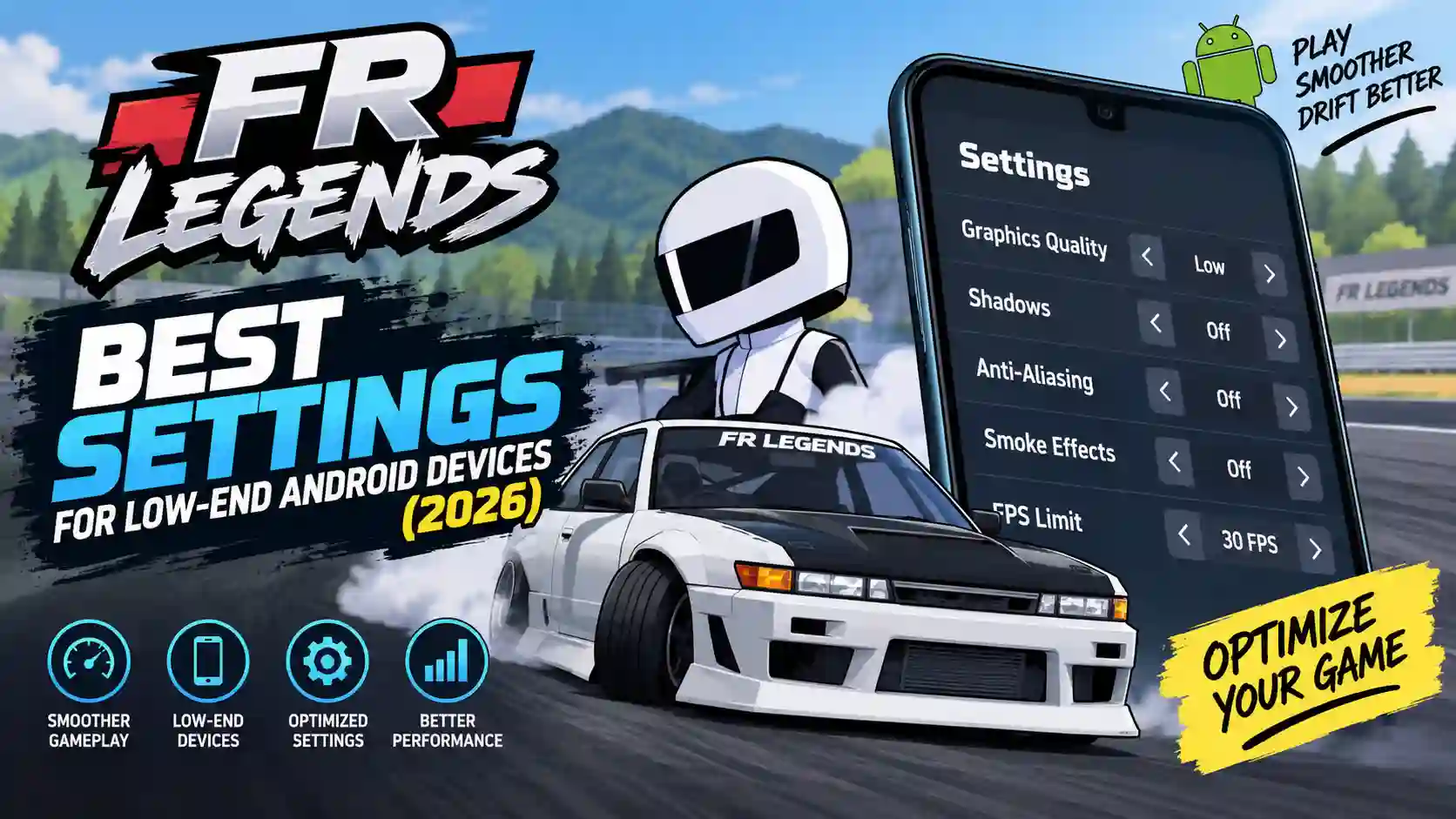
Your drift is clean, your angle looks right, and then the game stutters for half a second right when you need to catch the slide. That moment is rarely about your driving. On a budget phone, it usually comes down to graphics settings asking for more than the hardware can comfortably give, or background apps quietly holding onto RAM the game needs. If you’re looking for the best FR Legends settings for low-end Android devices, a good starting point is Low graphics quality, shadows and anti-aliasing turned off, reduced smoke and particle effects, a stable 30 FPS target, and a phone with nothing else running underneath the game.
That said, “low-end” covers a wide range of phones, and these settings are starting points rather than a guaranteed preset. Android phones use different chipsets, GPUs, software versions, and thermal designs, so the same settings can behave differently from one device to another. This guide walks through why FR Legends can be demanding on cheaper Android hardware, the best FR Legends settings for low-end Android devices by RAM size, how to tell what kind of lag you’re actually dealing with, and a practical way to check your specific phone instead of copying someone else’s setup and hoping it fits.
Best Low-End FR Legends Setup at a Glance
Setting
Recommended Starting Point
| Graphics Quality | Low, test Medium if stable |
| Shadows | Off |
| Anti-Aliasing | Off or Low |
| Smoke / Particles | Low or Off |
| Resolution Scale | Reduce if available |
| Frame Rate | Stable 30 FPS; test 60 FPS if consistent |
| Steering Sensitivity | Moderate starting point |
| Background Apps | Close unnecessary apps |
| Battery Mode | Avoid Battery Saver; test Balanced/Performance if available |
| Free Storage | Keep reasonable free space |
Why FR Legends Lags on Low-End Android Phones
FR Legends looks simple like cartoon art style, flat colors, and toy-like cars don’t look demanding on paper. But while you play, FR Legends has to handle driving physics, cars, tracks, smoke, and camera movement at the same time, which asks more of a phone’s processor and graphics chip than the visuals suggest. That’s part of why a budget device can run other simple-looking games fine and still struggle here.
A few parts of a low-end phone tend to feel this first.
GPU
Entry-level GPUs can struggle when FR Legends has to render shadows, smoke, particles, and multiple cars at the same time. The GPU isn’t always the first thing to give out on every phone, but it’s one possible bottleneck, especially during graphics-heavy scenes like a busy drift.
RAM
On a phone with 2GB or 3GB of RAM, Android itself uses a meaningful slice of memory just to keep running in the background. Whatever is left has to cover FR Legends, its car models, and textures. RAM is worth checking on tighter devices, but as covered further down, it isn’t the only factor that decides how smoothly the game runs.
Background Apps
Messaging apps, social media, and video apps don’t always shut down completely when you leave them. They can sit in memory, and on a low-RAM phone, that leftover load competes with the game for both memory and processing time. This tends to matter more on 2GB and 3GB devices than on phones with more headroom.
Heat
Low-end phones can heat up during longer gaming sessions, which may reduce performance. If FR Legends becomes choppy after 20–30 minutes but improves once the phone cools down, heat could be one possible cause. Playing in a cooler room and avoiding heavy apps in the background may also help keep temperatures under control.
Storage
Keeping some free storage available is generally useful, since a phone that’s almost completely full can run into broader slowdowns across the system, not just in FR Legends. There’s no strict rule for exactly how much space to keep free, but giving the system some room tends to help.
Game Updates
FR Legends receives updates over time, and updates may include stability, compatibility, bug fixes, or rendering changes that affect performance differently across devices. If a phone that used to run the game smoothly starts lagging right after an update, that’s worth noting, though it’s better treated as something to look into than something to assume.
Best Graphics Settings for FR Legends on Low-End Android
Once you have a sense of where the load is coming from, the in-game graphics menu is the fastest place to make a real difference.
Graphics Quality
Setting Graphics Quality to Low reduces the overall rendering workload the GPU has to handle. This is one of the first changes worth trying on weaker hardware, since it affects how much detail the game draws on every frame, though different phones can have different bottlenecks, so it won’t always produce the biggest improvement on every device.
Shadows
Real-time shadows add graphics workload, especially when multiple cars are visible. Turning shadows off is a practical starting point worth testing early, though it isn’t a guaranteed FPS fix on every phone.
Anti-Aliasing
Anti-aliasing smooths jagged edges, but it adds extra rendering work to do it. Turning it off or setting it to Low removes some of that load, and in a fast-moving drift game, the visual trade-off is usually small once you’re actually racing.
Smoke and Particle Effects
Smoke and particle effects tend to increase during heavy drifting, which is exactly when a low-end phone is already under the most load. Lowering these effects can ease that spike, and it’s often worth checking first if lag shows up mainly during smoky drifts rather than plain driving.
Resolution
If FR Legends offers a resolution scale option, lowering it reduces the number of pixels the GPU renders each frame. This trades some visual sharpness for a lighter workload, and it’s worth trying on phones where graphics and effects changes alone aren’t quite enough.
Frame Rate
Setting a frame rate target of 30 FPS gives the game a steadier pace to aim for on hardware that struggles to sustain something higher. The next section looks at this choice in more detail, since 30 versus 60 FPS matters more than it might first seem.
Which Should You Actually Target 30 FPS or 60 FPS
This setting gets misunderstood often, so it’s worth slowing down on. On many low-end phones, a stable 30 FPS target can feel more consistent than a higher frame rate that frequently drops. Drifting depends on timing, and a higher frame rate that frequently drops can feel less consistent than a lower frame rate that stays steady, since your steering correction and throttle release stop lining up predictably with what’s on screen when the frame rate keeps shifting.
That doesn’t mean every low-end phone should default to 30 FPS. If your device can remain smooth during normal driving, smoke-heavy drifting, and tandem runs at 60 FPS, there’s no real reason to avoid it. Some budget phones handle this better than their specs suggest. The right choice depends on the device, and the way to know is to check it under those real conditions rather than assuming it will hold just because the option exists in the menu. Stability matters more than simply choosing the highest number. Between a frame rate that averages higher but drops often, and one that’s lower but steadier, the steadier option is generally easier to drive with.
FR Legends Settings by RAM and Device Performance
RAM size is a useful starting point for narrowing down settings, but it is not the main measurement of how well a phone will run FR Legends.
2GB RAM
Graphics Quality: Low · Shadows/Anti-Aliasing/Smoke: Off · Frame Rate: Stable 30 FPS target · Background apps: Closed, not minimized · Free storage: Some headroom kept available. On this tier, avoid running anything else alongside the game, since every bit of free memory tends to matter more here than on higher-RAM devices.
3GB RAM
Graphics Quality: Low, trying Medium only if it stays stable · Shadows/Anti-Aliasing: Off · Smoke/Particles: Low · Frame Rate: Stable 30 FPS, checking whether 60 FPS holds through a full session.
4GB RAM
Graphics Quality: Low as the safe starting point, with Medium worth testing rather than assumed · Shadows: Off · Anti-Aliasing: Off or Low · Smoke/Particles: Low to Medium · Frame Rate: Start at 30 FPS, move to 60 FPS only if it stays consistent.
6GB and 8GB RAM
A phone with 6GB or 8GB of RAM can still struggle if its CPU, GPU, or thermal performance is weak, since RAM size alone doesn’t guarantee smooth performance. Start with Low or Medium graphics and see how the phone behaves before assuming higher settings will run fine.
Why RAM Alone Does Not Determine FPS
RAM is one factor among several. The CPU, GPU, chipset design, Android version, screen resolution, temperature, background processes, game optimization, and even the specific game version can all affect performance too. A 4GB phone with a weaker GPU can run behind a 3GB phone with a better one, so it helps to treat RAM as a starting filter rather than the full explanation for how your phone performs.
Best FR Legends Control Settings for a Laggy Phone
Control settings do not increase FPS. What they change is how forgiving inconsistent frame timing feels while you’re driving.
Steering sensitivity
If frame drops make steering difficult to control, try a moderate sensitivity and see whether small corrections feel easier. A very sensitive setup can turn a small stutter into an overcorrection, and that overcorrection sometimes gets blamed on “the game lagging” when the sensitivity is amplifying a brief hitch.
Throttle
Easing into the throttle instead of applying it suddenly gives you more control over wheelspin. This margin matters more on a phone where frame timing isn’t perfectly even, since a gradual input is easier to recover from if a frame briefly drops mid-drift.
Handbrake
Short, deliberate taps tend to transition into a drift more cleanly than holding the handbrake down for longer stretches, particularly when frame timing isn’t fully consistent.
Input delay
If touch controls feel less responsive while FPS remains smooth, the issue may be related to touch response or input processing rather than graphics performance. Input delay and low FPS aren’t always the same problem, so it’s worth separating the two instead of assuming a laggy feel always means low FPS.
Android-Level Tweaks That Can Help FR Legends
The settings menu inside FR Legends only covers part of the picture. What else is running on the phone matters too.
Background apps
Closing an app from your recent apps list is different from leaving it minimized, since a minimized app can still hold memory and run background processes. This is worth checking again here briefly, particularly on 2GB and 3GB devices.
Storage
Removing old APK files, duplicate photos, and unused apps helps keep some space free, which supports general system responsiveness rather than fixing FR Legends specifically.
Temperature
If freezing or performance drops appear after extended sessions, heat is one possible cause worth checking. If performance improves after the phone cools down, that’s a useful clue that heat may be involved, though it isn’t a certain diagnosis on its own.
Battery or performance mode
Avoid Battery Saver while gaming if it noticeably limits performance, since these modes are generally designed to reduce performance to extend battery life. Balanced or Performance modes can be tried where available. If your phone has a built-in game mode, it’s worth testing to see whether it improves stability.
Updates
Keeping both Android and FR Legends updated is worth doing. Updates may include stability, compatibility, bug fixes, or rendering changes that affect performance differently across devices, so an update that looks minor in the patch notes can still make a difference on certain phones.
Screen recording and overlays
If you’re recording gameplay or running a screen overlay while playing, that adds extra load on top of everything else. Closing recording tools and chat overlays before a session can free up resources that would otherwise go unnoticed.
Why FR Legends May Lag During Smoke or Tandem Drifting
Not all lag happens equally throughout a session. Some of it is tied to specific moments in the game.
Heavy smoke
Normal driving can feel smooth right up until a heavy drift kicks in and smoke effects increase. More smoke on screen generally means a heavier rendering workload, so a phone that handles light driving fine can still drop frames once a long, smoky drift starts. If lag shows up mainly during smoke-heavy drifting rather than plain driving, checking lower smoke and particle settings first is a reasonable place to begin.
Multiple cars
Racing or drifting near other cars adds more models, textures, and calculations to each frame. A track that feels fine solo can behave differently once AI opponents or other players are added to the scene.
Camera movement
Fast camera movement can sometimes make existing stutters more noticeable, especially when the scene already contains several cars or effects. This is a smaller factor than smoke or car count on its own, but it can add to a stutter that otherwise seems to come out of nowhere.
Tandem battles
Tandem drifting combines several of these factors at once: two cars close together, more smoke than a solo run, and more camera movement as the game tracks both vehicles. If your phone runs fine in solo practice but struggles specifically during tandem battles, that’s a useful clue pointing toward combined rendering load rather than a general settings problem.
Note: If you also enjoy trying modified cars and extra game content, check out our FRL Mods collection.
Why FR Legends May Lag in the Garage or Livery Editor
Smooth driving doesn’t guarantee that every part of the game will run the same way. Garage browsing may involve different assets and rendering work than normal driving, which can make performance feel different on some devices.
Garage scrolling
Scrolling quickly through a large car list can feel less responsive than driving on some devices. Some players have reported garage lag on lower-end phones even when regular races run smoothly, though this can vary depending on how many cars and cosmetic items are unlocked on a given account.
Livery editor
If the livery editor feels slower than driving, the extra decals, layers, colors, and real-time 3D preview may be contributing to the workload. This is a different kind of task for the phone than racing, and it’s worth troubleshooting on its own terms rather than assuming it should behave the same as driving.
Decals and rims
Adding a large number of decals or switching between detailed rim designs repeatedly can add up, especially on a phone that’s already close to its GPU limit. If the livery editor feels fine with a simple design but slows as you add more layers, that points toward hitting that limit.
Touch responsiveness
Livery editing and garage browsing rely heavily on touch input, so a phone with slower touch response can feel less precise here even when frame rate isn’t the main issue. This is a separate concern from FPS and relates more to the phone’s touchscreen hardware than to the game’s settings.
How to Tell What Type of FR Legends Lag You Have
“Lag” covers more than one problem, and figuring out which type you have makes troubleshooting faster.
Low FPS
The game looks consistently slow rather than stuttering occasionally. This points toward general graphics workload, so lowering Graphics Quality is usually the first thing worth trying.
Stuttering
The game runs fine most of the time but pauses or jumps for short moments, often during smoke-heavy drifts or when other cars appear. This points more toward specific effects than overall graphics quality, so checking smoke and particle settings first makes sense.
Input delay
Controls feel slower to respond than what’s happening on screen, even when the visuals look reasonably smooth. As mentioned earlier, this can involve touch response rather than graphics settings.
Freezing
The game stops responding for a moment and then catches up. If this happens mainly after a period of play, checking for heat is a reasonable first step, along with confirming nothing else is running in the background.
Heat-related slowdown
Performance that’s fine early in a session but noticeably worse after twenty or thirty minutes suggests the phone may be warming up. If performance improves after a break, that’s a useful clue, even if it isn’t a certain diagnosis by itself.
Garage or customization lag
If driving feels smooth but the garage or livery editor doesn’t, that points toward an issue specific to those screens rather than a general performance problem, and it’s worth troubleshooting separately from your main graphics settings.
How to Find the Best Settings for Your Specific Phone
There’s no single setup that works identically across every low-end phone. Two devices with the same amount of RAM can still perform differently depending on their processor, GPU, and how well the software is optimized. This isn’t a scientific measurement method, but it’s a practical way to figure out your own phone’s comfortable range instead of copying someone else’s settings.
- Start with Low graphics, shadows off, anti-aliasing off, and smoke effects off.
- Try normal driving on a familiar track.
- Check heavy drifting with smoke effects active, since that’s a different load than plain driving.
- Try a tandem run with another car nearby.
- Check garage scrolling separately from racing.
- Check the livery editor separately as well.
- If your device supports it, compare a stable 30 FPS target against 60 FPS under the same conditions.
- Change one setting at a time, such as moving Graphics Quality from Low to Medium.
- Test again under similar conditions to before, ideally the same track and scenario, after the phone has cooled and with background apps closed.
- Keep the change only if performance stays stable across driving, smoke, and tandem checks, and revert it if stuttering, freezing, or input delay shows up.
This takes longer than copying a preset, but it accounts for the fact that garage lag, smoke lag, and driving lag don’t always respond to the same settings in the same way.
Why FR Legends Performance Can Change After an Update
Game updates may include stability fixes, compatibility changes, new assets, or rendering adjustments, and any of these can shift how the game performs even if your settings haven’t changed. A phone that ran FR Legends smoothly before an update isn’t guaranteed to run it the same way afterward.
If performance changes right after an update, it’s reasonable to check whether other players with similar devices are reporting the same thing before assuming it’s a permanent problem with your phone. It helps to keep two categories separate here: official information, meaning anything confirmed directly by the developers or an official store listing, and community reports, meaning what players are observing and discussing among themselves. Community reports can be a useful signal, but they aren’t the same as an official statement, so they’re worth treating as reports rather than confirmed facts. Re-running the testing steps above after a major update is a practical way to check whether your previous settings still hold up.
Common Mistakes That Make FR Legends Lag Worse
Maxing out graphics to “just see” : On a phone that’s already struggling, this can turn occasional stutter into constant stutter, and it takes a few minutes to undo.
Changing several settings at once: The lag might go away, but you won’t know which change actually fixed it, which makes further fine-tuning harder.
Playing through overheating instead of pausing: Continuing a session while the phone is already hot can extend the slowdown into your next session too.
Assuming more RAM always means better performance: As covered earlier, a 4GB phone with a weaker GPU can still run behind a 3GB phone with a better chipset.
Judging performance from driving alone: Since garage, livery editor, and tandem battles can behave differently from normal racing, checking only one of these can leave you with an incomplete picture of what your phone can actually handle.
Which Setting Should You Change First
If you’re not sure where to start, try this as a rough guide rather than a guaranteed fix.
- Lag shows up everywhere, all the time: try lowering Graphics Quality first.
- FPS drops mainly during smoke-heavy drifts: test lower smoke and particle effects.
- A stable 60 FPS target keeps stuttering: compare it with a stable 30 FPS target.
- The phone feels hot to the touch: pause and let it cool before changing anything else.
- Only the garage or livery editor feels slow: troubleshoot those screens separately from your driving settings.
- You have 4GB of RAM or more but still see lag: check GPU, CPU, heat, and background load rather than assuming RAM is the limiting factor.
FAQ’S

Conclusion
Finding the best FR Legends settings for low-end Android devices isn’t about making the game look as sharp as possible. It’s about finding a setup your specific phone can hold across driving, smoke-heavy drifts, tandem battles, and the garage without dropping frames at the wrong moment. Start conservative, check performance under real conditions rather than assumptions, change one setting at a time, and let a steadier frame rate win over a flashier one that keeps breaking. That approach tends to hold up better than any single fixed preset, no matter which budget phone you’re using.